e-Sanjeevani Tele-Medicine Service
- Home
- e-Sanjeevani
e-Sanjeevani — Free National Tele-Medicine Service
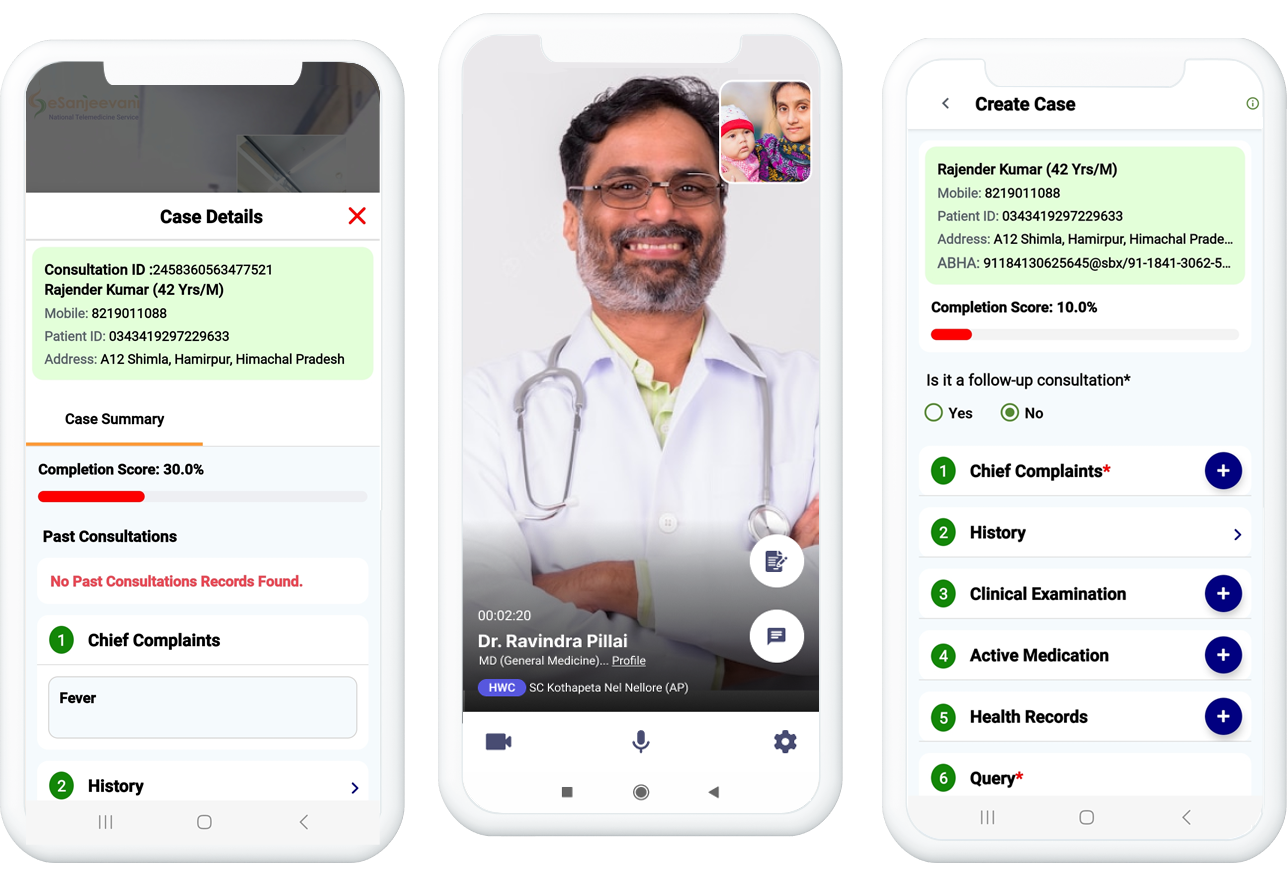
e-Sanjeevani is the Government of India's free national tele-medicine platform developed under the Ministry of Health & Family Welfare (MoHFW). AIIMS patients can now attend follow-up consultations from the comfort of their homes — no travel required.
Key Benefits
For Patients
- No need to travel for a simple follow-up
- Zero cost — government-provided free service
- Scheduled slot — no OPD queue waiting
- Digital prescription via e-Sanjeevani app
- Health records maintained seamlessly
For Doctors
- Structured, time-boxed tele-consultation slots
- Patient history accessible during tele-consult
- Reduced physical OPD load
- Digital notes auto-pushed to HMIS
- Better follow-up compliance
For Hospital
- Significant reduction in OPD footfall
- Improved OPD throughput
- Single-source HMIS data for cleaner reports
- Compliance with Digital Health Mission
- Staff workload reduction
National Impact
- Aligned with Ayushman Bharat Digital Mission
- Supports Tier-2/3 city & rural patients
- AIIMS as Digital Health Center of Excellence
- Replicable model for network-wide rollout
Scope of Service
| In Scope | Out of Scope |
|---|---|
|
|
How It Works — Step by Step
Flow 2 — Patient Accesses e-Sanjeevani Portal & Attends Tele-Consultation
Flow 3 — Doctor Conducts Tele-Consultation via e-Sanjeevani Portal
Flow 4 — Doctor Verifies e-Sanjeevani Prescription in e-Sushrut HMIS
Quick Reference for Patients
Step 1 — Get Prescription
Visit AIIMS OPD. Your doctor will generate a prescription and book your e-Sanjeevani appointment. You will receive a printed prescription with your Appointment Number, Date & Time.
Step 2 — Log In to Portal
Visit esanjeevani.mohfw.gov.in, click "Patient", log in with OTP, and select your profile. Go to the Appointment tab to see your scheduled appointment.
Step 3 — Attend Consultation
On appointment day, click "Consult Now", provide consent, upload any new health records, and click "Call" when your doctor is shown as Active.
Important Notes for Patients
- e-Sanjeevani is available only for OPD follow-up consultations — new patients must register physically at AIIMS first.
- Ensure your camera and microphone permissions are enabled before joining the call.
- The "Call" button is active only when your doctor is online (shown as green "Active"). Wait and refresh if not yet active.
- This is a completely free service — no charges apply for e-Sanjeevani consultations.
- Your prescription is automatically saved in both e-Sanjeevani and AIIMS HMIS records.
- You can reschedule appointments through the portal; rescheduled slots are confirmed by the doctor.
Download eSanjeevani

Scan to download

Click on above link